Knowing How to Check the PC Specifications (CPU, RAM, etc.)? Windows 11 helps you understand your device’s performance, troubleshoot issues, and decide whether your computer can run certain apps or games. Many users don’t realize how easy it is to see their system information on Windows 11. In this guide, you will learn every simple method available—no technical background required.
Why Checking PC Specs Matters
Before learning the steps, it’s important to understand why PC specifications matter. Your CPU, RAM, and system type determine whether your device runs smoothly or struggles with multitasking. When you know your computer’s hardware details, you can:
- Compare your PC with software requirements
- Improve performance by upgrading components
- Diagnose slow PC issues
- Decide whether it’s time to buy a new device
- Optimize gaming performance
Windows 11 provides several built-in tools that show your system details. Let’s go through each one step-by-step.
1. Check PC Specs Using Settings
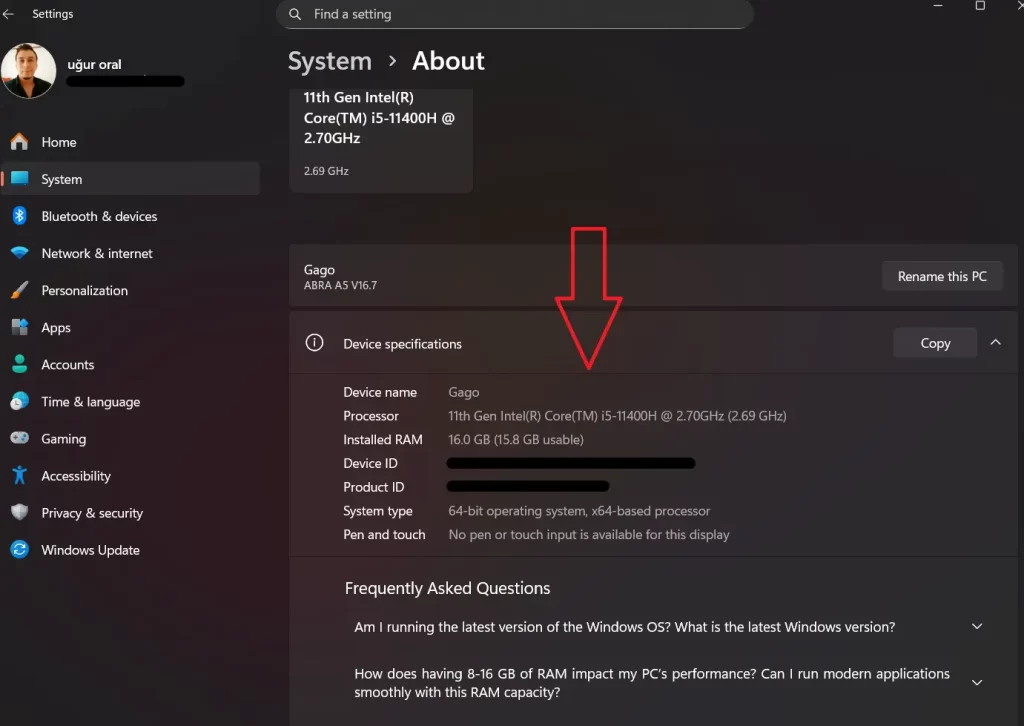
The Settings app is the fastest and easiest way to check your CPU, RAM, Windows version, and system type.
Steps:
- Click Start and select Settings
- Go to System
- Scroll down and click About
Here you will see:
- Device name
- Processor (CPU)
- Installed RAM
- Device ID
- System type (32-bit or 64-bit Windows)
- Windows edition & version
This method is perfect for quick checks.
2. Check PC Specifications Using System Information
For more detailed technical data, Windows 11 includes the System Information (msinfo32) tool.
Steps:
- Press Windows + R
- Type msinfo32 and press Enter
A large window will open with complete hardware and software details, including:
- CPU model and speed
- BIOS version
- Installed memory
- Motherboard information
- Storage and drivers
- Boot mode
This tool is extremely useful when troubleshooting or contacting technical support.

3. Check CPU and RAM from Task Manager
Task Manager not only shows performance but also gives live system information.
Steps:
- Right-click the Taskbar
- Click Task Manager
- Go to the Performance tab
Here you can see:
- CPU usage and model
- RAM speed, usage, and available memory
- GPU details
- Disk usage
- Wi-Fi or Ethernet performance
This method is great for checking real-time performance when your PC feels slow.
4. Check Storage Details Using File Explorer
To see how much space you have left:
Steps:
- Open File Explorer
- Click This PC
You’ll see all storage drives and how much free space remains. If your drive is almost full, your PC may run slower, so this check is helpful.
5. Check Graphics Card (GPU) Information
Windows 11 allows you to view your GPU details directly.
Steps:
- Open Settings
- Go to System → Display
- Scroll down and click Advanced display
- Select Display adapter properties
You will see:
- GPU model
- Dedicated video memory
- Display information
This is helpful for gaming, video editing, or checking if your PC supports certain features.

6. Use Command Prompt (Advanced Users)
If you want a fast text-based method, Command Prompt can show detailed specs.
Steps:
- Press Windows + R
- Type cmd
- Enter this command:
systeminfo
It will display:
- Installed RAM
- CPU info
- Windows version
- BIOS version
- System type
This method is quick once you get used to it.
Conclusion
How to Check the PC Specifications (CPU, RAM, etc.)? Windows 11 is something every user should know. Whether you want to troubleshoot problems, install new software, upgrade hardware, or simply understand your device better, Windows 11 makes it very easy to view your system information. By using Settings, System Information, Task Manager, or Command Prompt, you can access everything you need in just a few clicks.